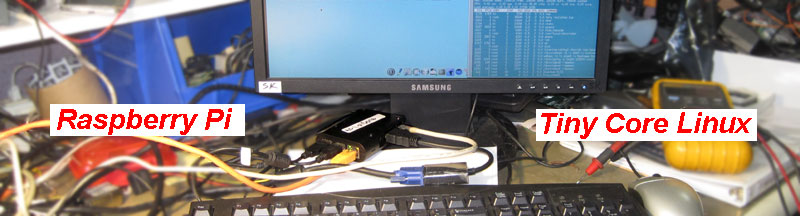
Just for fun.
3.a.12 Raspberry Pi with TinyCore Linux.
What are we talking about 'Raspberry Pi 3 Model B (W)', which has two network interfaces, Eth and wireless.
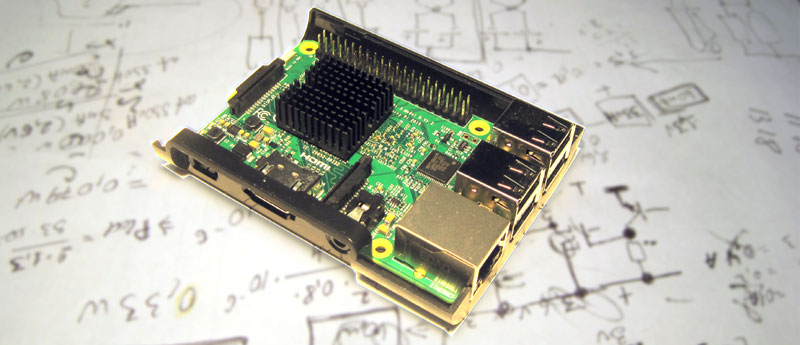
I can assume that you have already installed (try) everything from 'raspberry pi downloads page' and this does not suit you. My reason for installing Tiny Core Linux is that the data exchange rate with a SD card is very slow (1 MB/sec) and any operations with it (really nightmare) take a lot of time, and every time.
On the other hand, Tiny Core runs from memory where it is copied only once, at the boot time. It takes about 10 seconds, but after that the computer runs like a real PC.
To do this, in a short way.
1. On a Windows PC download disk image from tinycorelinux.net. Armv6/7 - the same.
2. Burn this image (piCore-9.0.zip) to SF card with rufus or any other software.
// You ready to boot Pi in text mode with SSH running and file manager - mc.
3. Install SD card to 'Raspberry Pi' and boot. Tiny Core will generate new key for SHH.
3.1 Save SSH keys so as not to generate a new one at each boot -> filetool.sh -b
// By default - SHH up and running. Login: ' tc ', password: ' piCore '.
4. Resize second partition on SD card in 3 steps:
4.1 - with fdisk (fdisk -u /dev/mmcblk0) for partition two, extend to end of the disk (m,p,d,2,n,p,2,77824,Enter,w);
4.2 - sudo reboot ;
4.3 - with resize2fs (sudo resize2fs /dev/mmcblk0p2) & check partition size ( with ' df ' or ' df -h ' ).
// Now, your second partition big enough to install additional soft.
// Next req. connect Pi to internet via Eth.
5. Install driver and soft for onboard WiFi, & save it:
5.1 Driver -> tce-load -iw firmware-rpi3-wireless.tcz ;
5.2 Soft -> tce-load -iw wifi.tcz ;
/* Firmware & wifi already in onboot.lst. */
// After reboot, sudo wifi.sh will show all AP around.
6. Load GUI ("desktop")-> tce-load -iw TC.tcz
7. Add missing file for GUI -> tce-load -iw fontconfig.tcz
/* TC & fontconfig already in onboot.lst. */
8. Reboot. It's all over. Enjoy small & fast Tiny Core on Raspberry Pi.
Add "audio player" and web browser 'Dillo3', if you want. As result your screen will loots like:
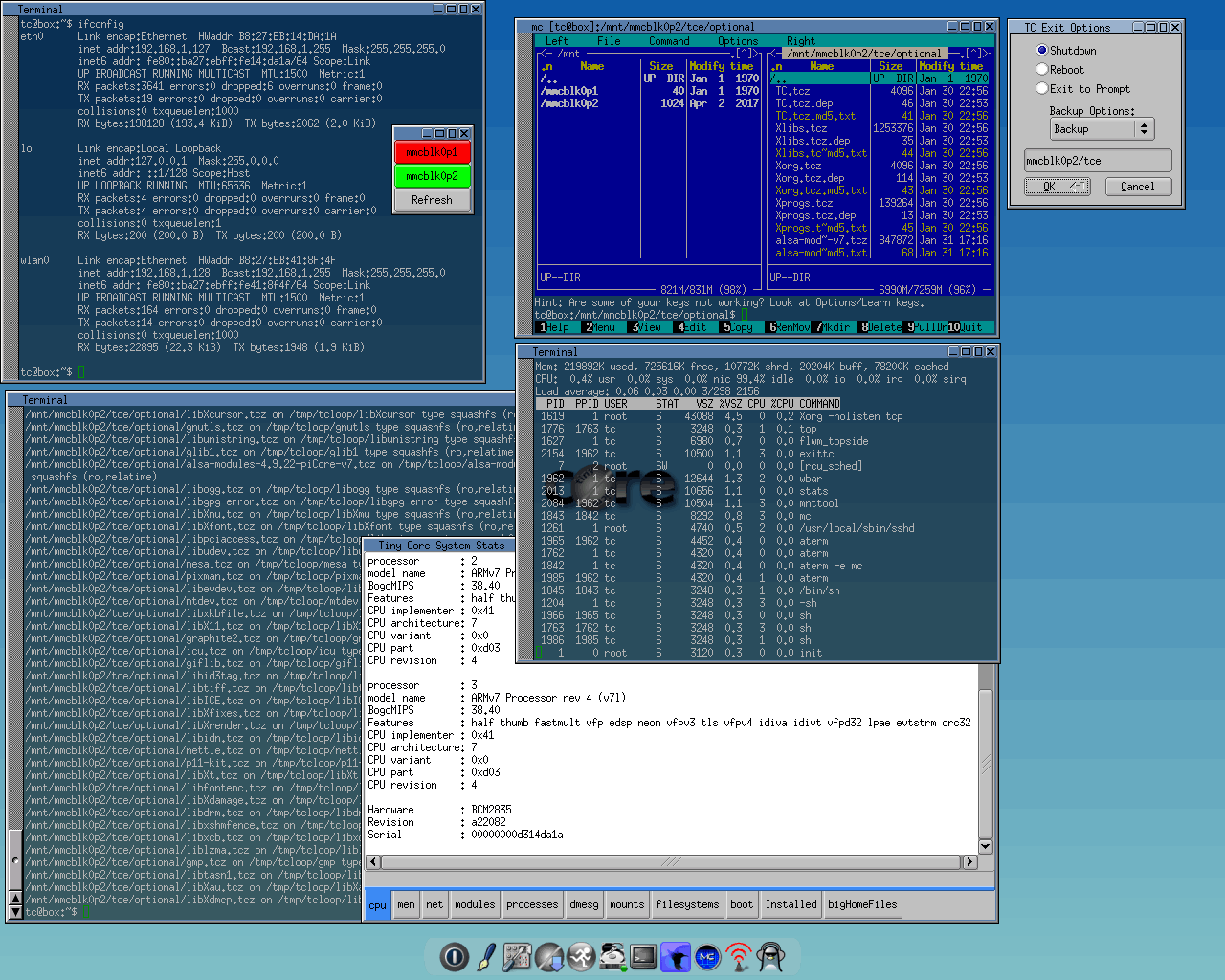
Switch between GUI and CLI: Alt+Ctrl+F1/F2.
All up and running, include SSH. You can get remote access to your Pi, from Windows computer, via SSH through the putty. The default name is " tc ", password - " piCore ".
And, it's it.
P.S. If it's easier for you to watch "step by step" video, then a similar path is shown here: (youtube, 14 min).
***And if you find inaccuracies, or have something to add, then my address below.